Chat Workspace
Chat Workspace is the heart of SwiftCareer - the main place where you interact with the AI assistant about jobs and CV tailoring.
Purpose
Chat Workspace is:
- Main conversation area: Where you talk with the assistant about jobs and documents
- Analysis center: Where the assistant analyzes jobs and suggests actions
- Starting point: To begin tailoring your CV and creating cover letters
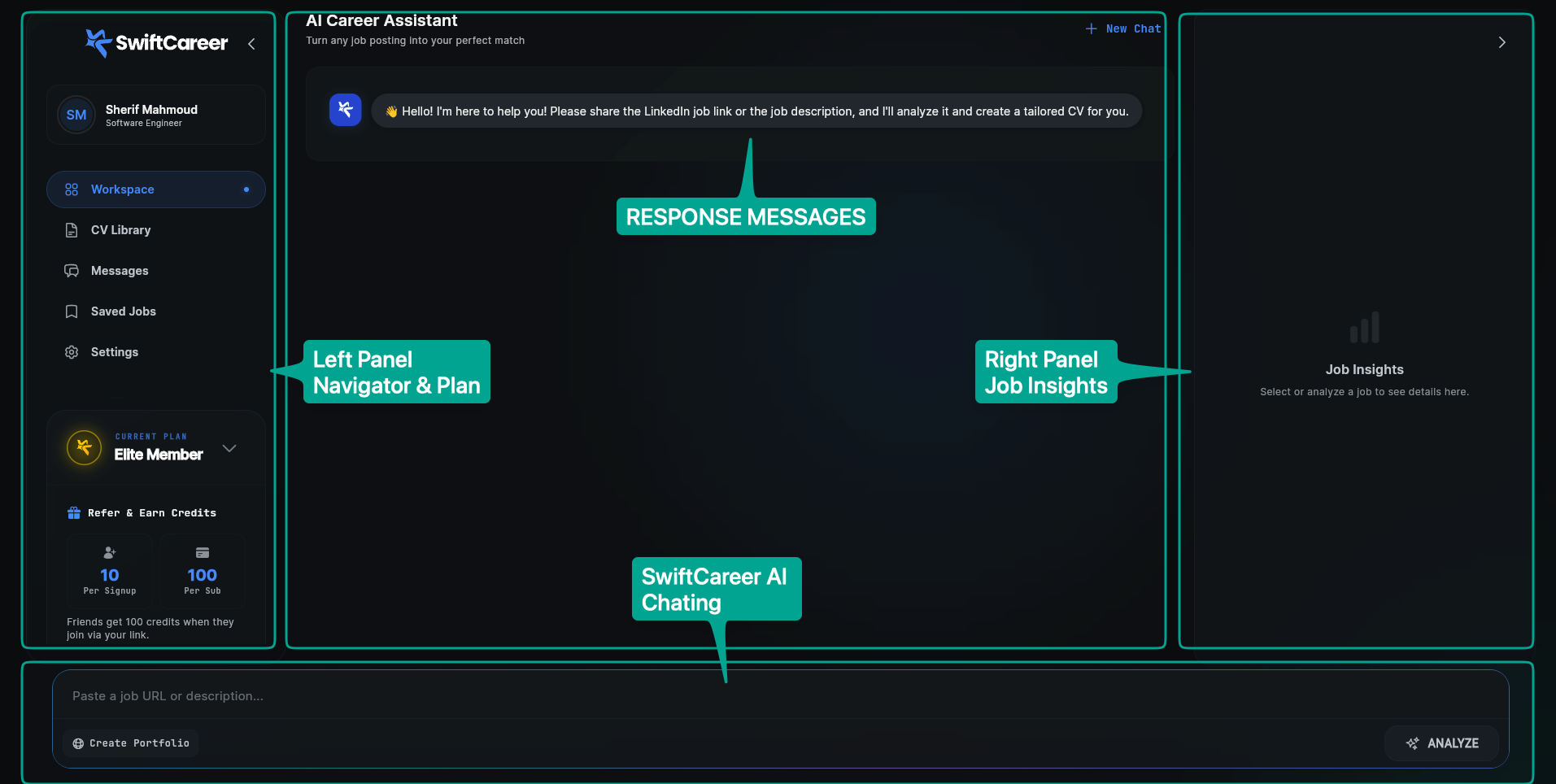
Accessing Chat Workspace
From Main Menu
- Open the app and sign in
- From the main menu, tap "Chat Workspace"
- The chat interface will open
What to Do
1. Enter Job Description
You can enter the job in several ways:
a) Paste LinkedIn Link
https://www.linkedin.com/jobs/view/1234567890
The assistant will automatically fetch:
- Job title
- Company name
- Full description
- Requirements
- Additional information
b) Paste Job Description
Copy and paste the full text of the job description from any site:
Flutter Developer Required
Leading tech company
Requirements:
- 3+ years Flutter experience
- Knowledge of Dart
- Experience developing iOS and Android apps
...
Continue Conversation
- Ask questions: Ask the assistant about anything related to the job
- Request clarifications: "What are the most important skills?"
- Request improvements: "Improve the summary more"
Tips for Effective Use
Be Specific
Good:
Marketing Manager position at a global FMCG company.
Responsibilities include leading a team to develop and launch regional marketing campaigns,
managing a $3M annual budget, overseeing digital and traditional media strategies,
and collaborating with sales and product teams.
Required skills: campaign management, data-driven decision making, strong communication,
and experience with Google Analytics and CRM tools.
5+ years in marketing or related roles preferred.
Not Good:
Marketing job.
The more detail and data you provide, the better and more accurate your results will be.
Provide Complete Information
- Copy full description: The longer the description, the better the analysis
- Add context: If you have additional information, add it
Review Analysis
- Read analysis results: Before taking any action
- Check match: Make sure the analysis makes sense
- Review missing skills: Add only what you actually possess
Advanced Features
Saving Conversations
- Conversations are automatically saved: You can return to them later
- Multiple conversations: You can manage multiple jobs at the same time
- Search: Search your past conversations
Sharing Conversations (Coming soon)
- Export conversation: Save a copy of the conversation
- Share: Share the conversation with a career counselor
Common Issues
Assistant Doesn't Understand the Job
Solution:
- Make sure you copied the full description
- Add more context
- Try using a LinkedIn link
Analysis is Inaccurate
Solution:
- Review the description you sent
- Add additional information
- Ask clarifying questions
Action Buttons Don't Appear
Solution:
- Wait until analysis is complete
- Make sure your profile is complete
- Check your credits
Next Steps
After using Chat Workspace:
Getting Help
- Look for the help icon inside Chat Workspace
- Review FAQ
- Contact support via swiftcareer.io