Skills Match Analysis Message
The Skills Match Analysis Message compares your profile and CV with the job requirements, showing you exactly where you match and where there are gaps.
What Is This Message?
The Skills Match Analysis Message is a comprehensive AI-powered analysis that compares your profile with the job requirements. It provides:
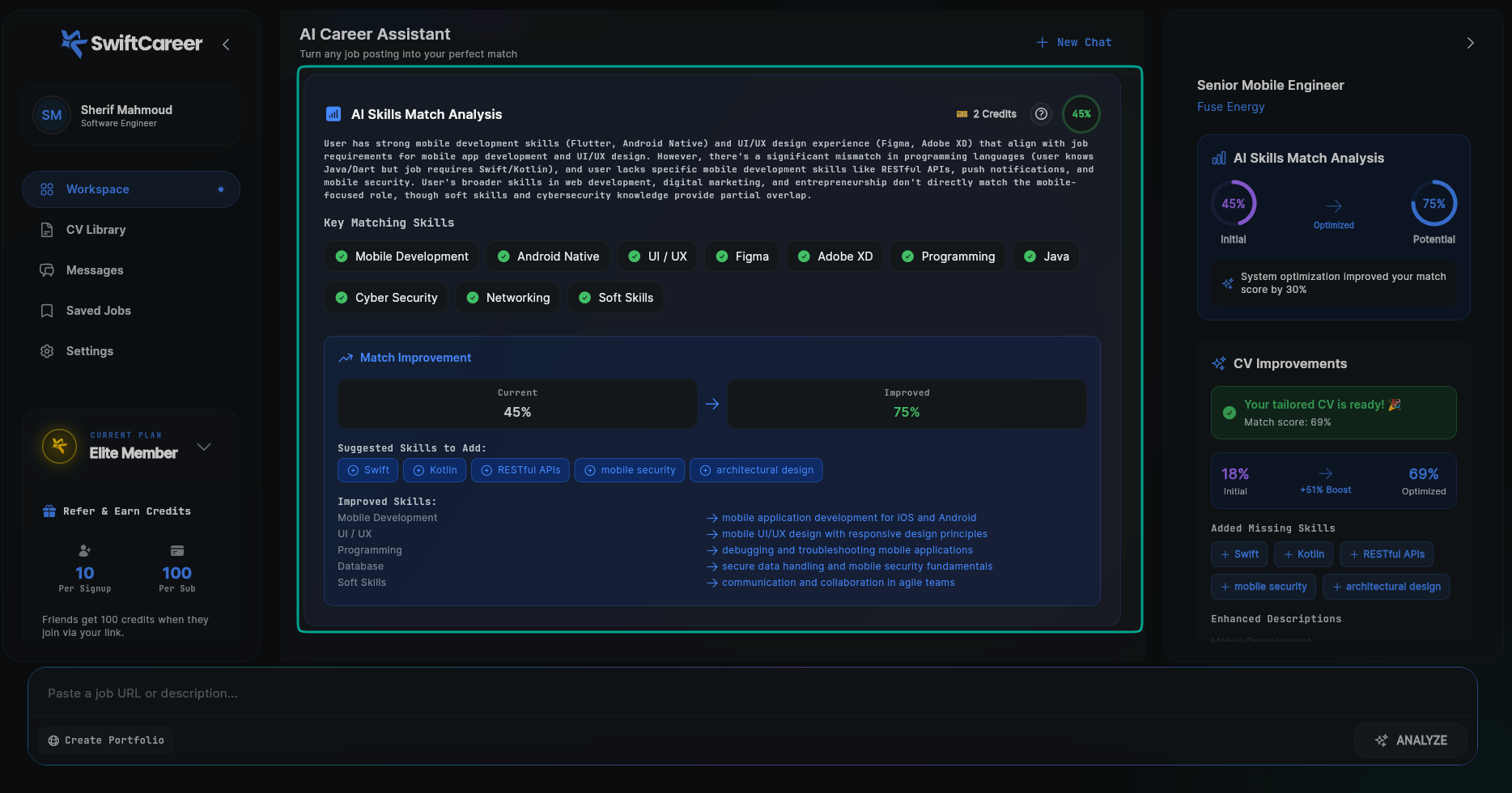
- Initial Match Percentage: Your current match score (e.g., 45%) displayed in a circular indicator
- Detailed Analysis: A comprehensive paragraph explaining where you match and where there are gaps
- Key Matching Skills: A list of skills you have that align with job requirements, marked with green checkmarks
- Match Improvement: Shows your current match vs. potential improved match after optimization (e.g., Current 45% → Improved 75%)
- Suggested Skills to Add: Blue pill-shaped buttons with plus icons for skills you might want to add (e.g., Swift, Kotlin, RESTful APIs)
- Improved Skills: A list showing how your existing skills can be enhanced with specific improvements
- CV Optimization Preview: In the right sidebar, you'll see how your CV match score improves after tailoring
This analysis helps you understand your strengths, identify skill gaps, and see the potential improvement after CV optimization.
When Does It Appear?
The Skills Match Analysis Message appears:
- After job analysis: Once the job requirements are extracted
- After profile comparison: When your profile is compared with job requirements
- Before CV tailoring: This analysis informs how your CV will be tailored
Message Components
1. AI Skills Match Analysis Header
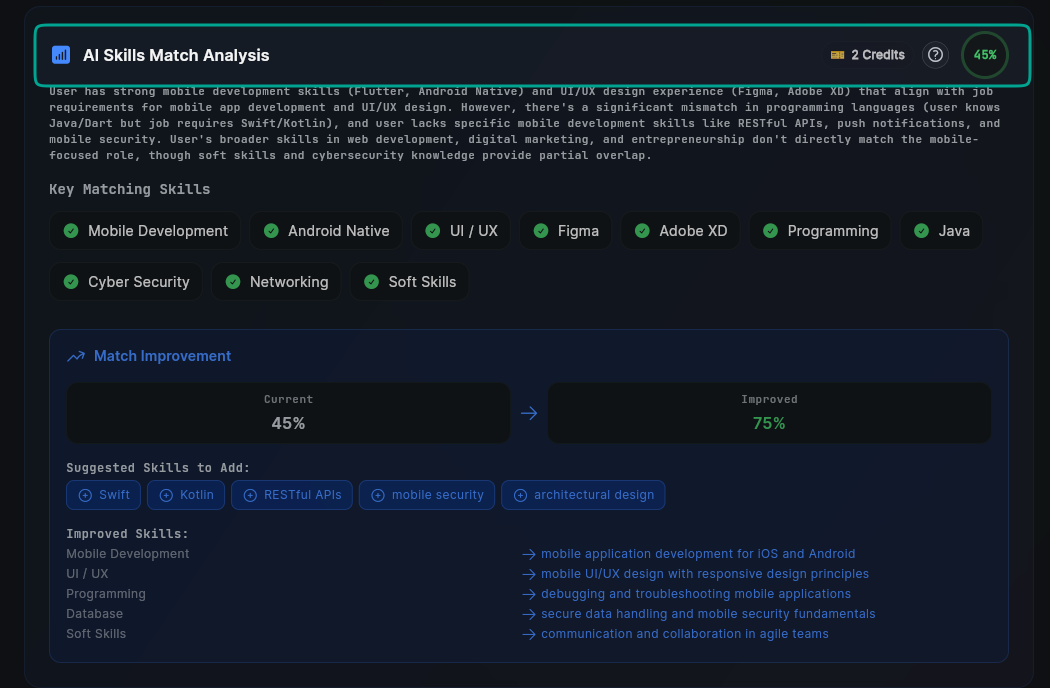
Header Section
- Title: "AI Skills Match Analysis" with a bar chart icon
- Credits Badge: Shows the cost (e.g., "2 Credits") with a credit card icon
- Match Percentage Circle: Your initial match score displayed in a green circular indicator (e.g., "45%")
- Help Icon: A question mark icon for additional information
- This appears at the top of the message card
2. Detailed Analysis Text
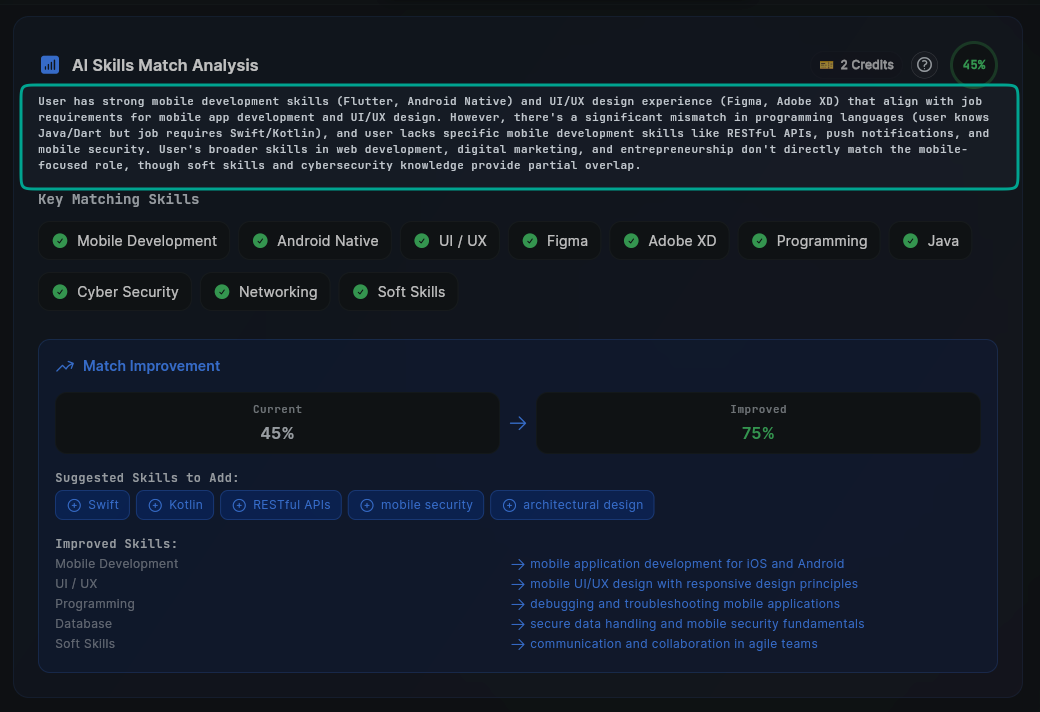
Comprehensive Analysis Paragraph
- A detailed explanation of how your profile matches the job requirements
- Highlights both matching areas and gaps
- Explains specific mismatches (e.g., programming languages, missing skills)
- Mentions partial overlaps and transferable skills
- Example: "User has strong mobile development skills (Flutter, Android Native) and UI/UX design experience (Figma, Adobe XD) that align with job requirements for mobile app development and UI/UX design. However, there's a significant mismatch in programming languages (user knows Java/Dart but job requires Swift/Kotlin), and user lacks specific mobile development skills like RESTful APIs, push notifications, and mobile security..."
3. Key Matching Skills
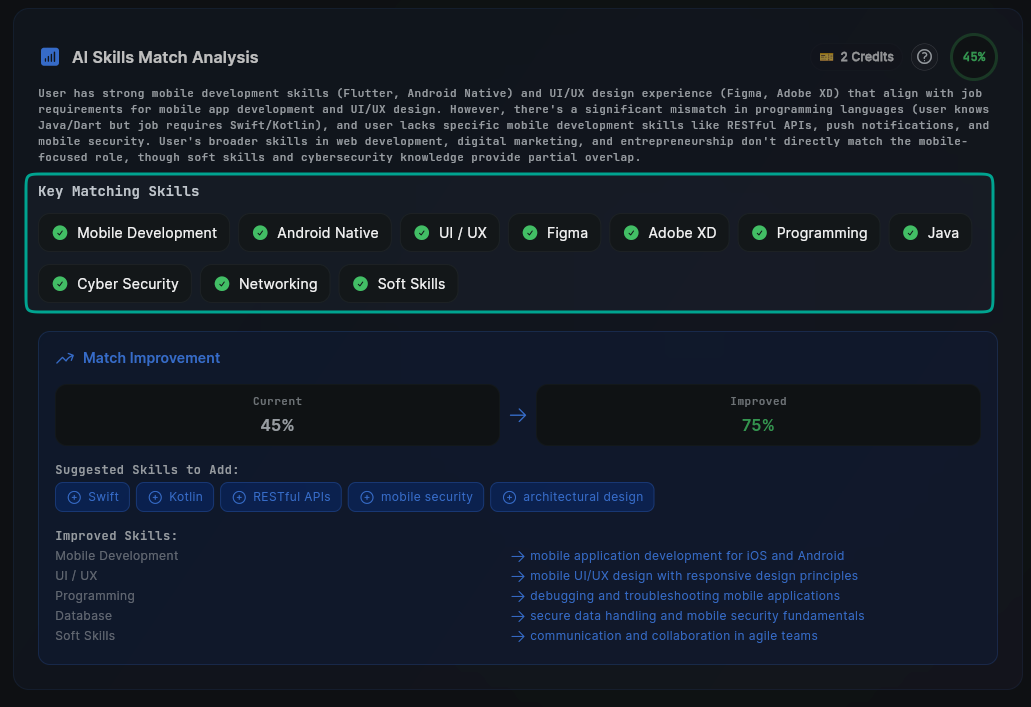
Skills You Have
- List of skills that match job requirements
- Each skill displayed as a rounded tag with a green checkmark icon
- Examples: Mobile Development, Android Native, UI/UX, Figma, Adobe XD, Programming, Java, Cyber Security, Networking, Soft Skills
- These represent your strengths for this role
4. Match Improvement Section
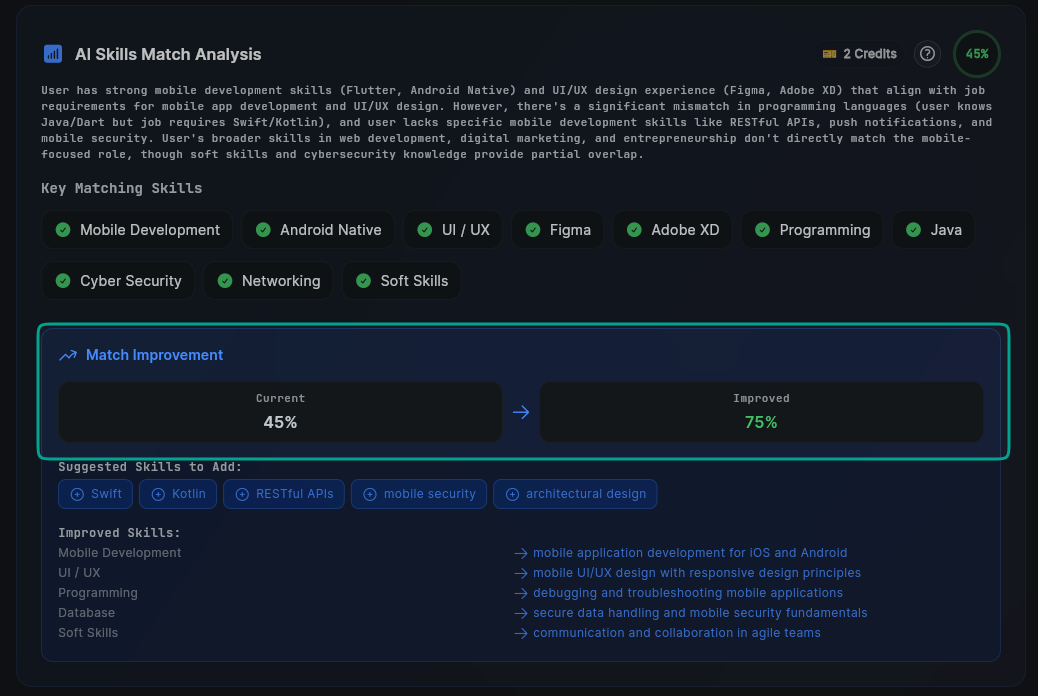
Current vs. Improved Match
- Title: "Match Improvement" with an upward-pointing arrow icon
- Current Match: Shows your initial match percentage in a dark grey box (e.g., "Current 45%")
- Improved Match: Shows potential match after optimization in a dark grey box (e.g., "Improved 75%")
- Visual Arrow: A right-pointing arrow connects Current to Improved, indicating the improvement potential
- This helps you understand how much you can improve with CV tailoring
5. Suggested Skills to Add
Missing Skills with Add Buttons
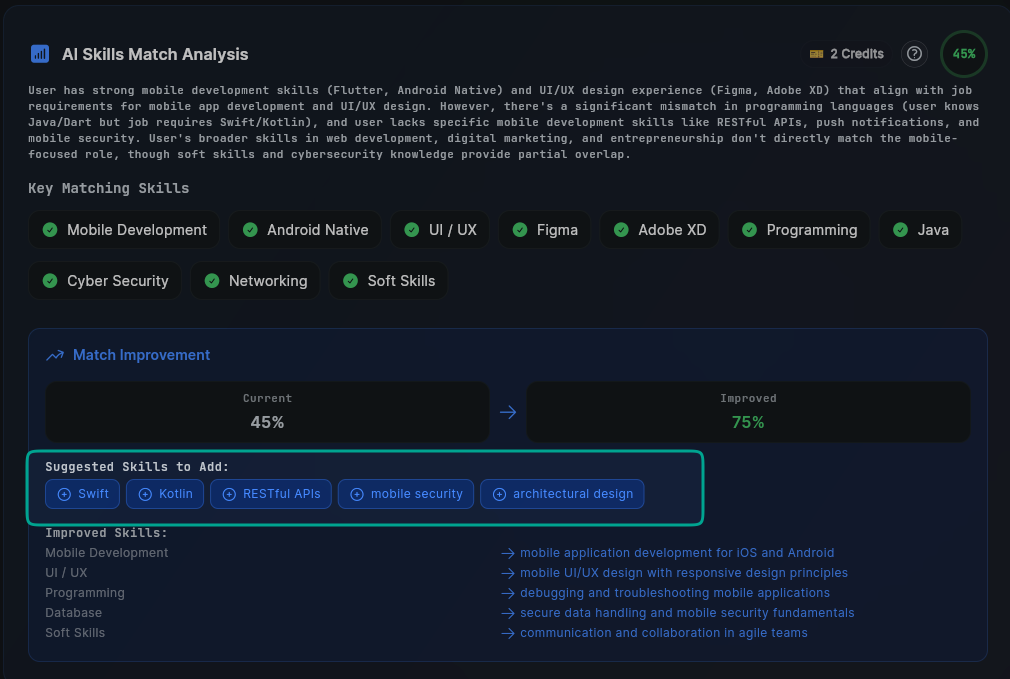
- Title: "Suggested Skills to Add:"
- Blue rounded tags with white plus (+) icons
- Each tag represents a skill you might want to add to improve your match
- Examples: Swift, Kotlin, RESTful APIs, mobile security, architectural design
- Click these buttons to add skills to your profile (only if you actually have them)
6. Improved Skills
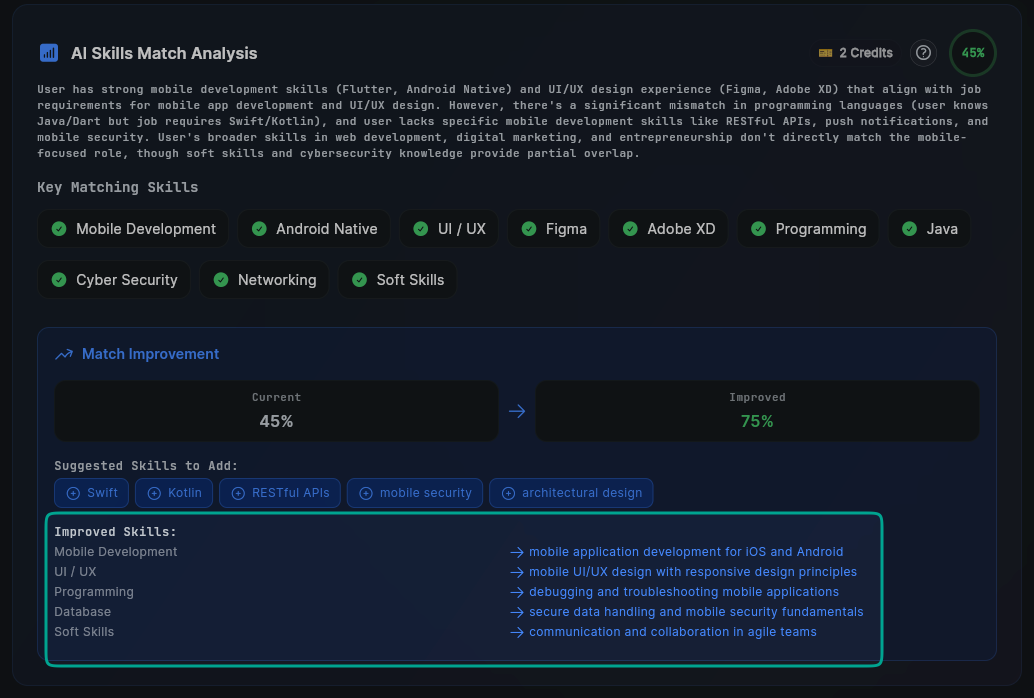
Skill Enhancement Suggestions
- Title: "Improved Skills:"
- Shows how your existing skills can be improved or specified
- Each item has a right-pointing arrow (→) icon pointing to a more specific description
- Examples:
- "Mobile Development" → "mobile application development for iOS and Android"
- "UI / UX" → "mobile UI/UX design with responsive design principles"
- "Programming" → "debugging and troubleshooting mobile applications"
- "Database" → "secure data handling and mobile security fundamentals"
- "Soft Skills" → "communication and collaboration in agile teams"
7. Right Sidebar
AI Skills Match Analysis Summary
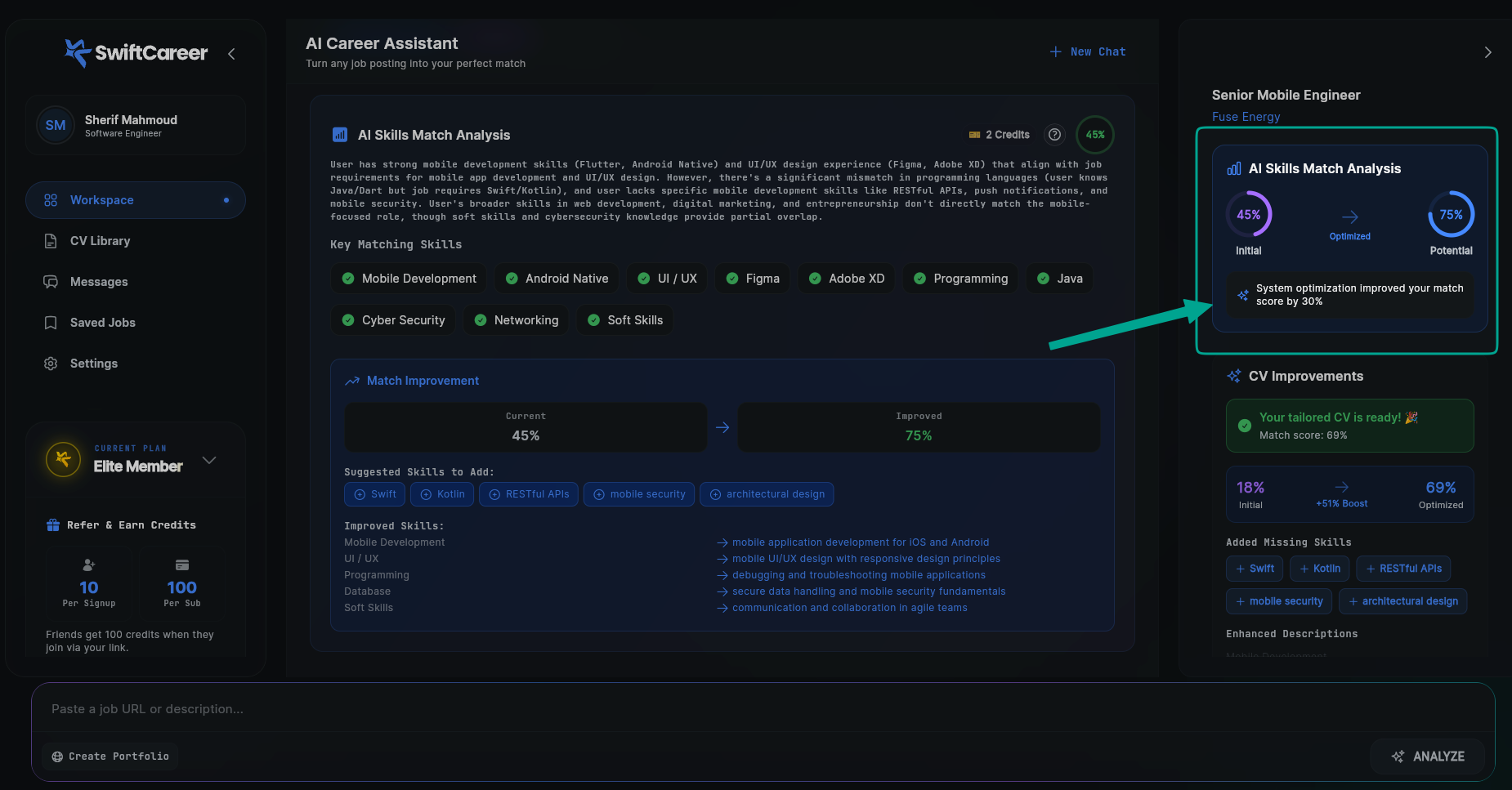
- Initial vs. Potential Indicators: Two circular progress indicators
- "Initial" percentage (purple, e.g., 45%)
- "Potential" percentage (blue, e.g., 75%) labeled "Optimized"
How to Use It
Review Your Initial Match Score
- Check the percentage: Your initial match score is shown in the green circle (e.g., 45%)
- Understand the baseline: This is your starting point before optimization
- Don't worry if low: The system shows you how much it can improve
Read the Detailed Analysis
- Review the paragraph: Read the comprehensive explanation of your match
- Understand gaps: Identify specific areas where you don't match
- Note partial overlaps: Some skills may partially match even if not exact
Check Your Matching Skills
- Review the list: Confirm all skills marked with green checkmarks are accurate
- These are your strengths: These skills align with job requirements
- Use them: These will be emphasized in your tailored CV
Review Suggested Skills to Add
- Check the blue buttons: Review skills suggested for addition
- Be honest: Only add skills you actually possess
- Click to add: Use the plus buttons to add skills to your profile if you have them
- Never fabricate: Don't add skills you don't have
Review Improved Skills
- See enhancements: Check how your existing skills can be improved
- Understand specifics: The arrows show more specific descriptions
- These will be used: The system will use these improved descriptions in your CV
Check the Right Sidebar
- See potential improvement: View how your match can improve (e.g., 45% → 75%)
- Check CV optimization: See how your CV match score improves after tailoring
- Review added skills: Confirm which skills were added to improve your match
Important Tips
Honesty is Essential
- Never add false skills: This will hurt you in interviews
- Only list real experience: Be truthful about what you know
- It's okay to have gaps: Not every job will be a perfect match
Understanding the Score
- 70%+ is good: Shows strong alignment
- 50-70% is moderate: Some gaps but still viable
- Below 50%: May need significant skill development or different role
Improving Your Match
- Add missing skills you have: If you forgot to list something
- Highlight related experience: Even if not exact match
- Emphasize transferable skills: Skills that apply across domains
When to Proceed
- High match (80%+): Strong candidate, proceed with confidence
- Moderate match (60-80%): Good candidate, tailor carefully
- Low match (less than 60%): Consider if this role is right for you
Next Steps
After reviewing the Skills Match Analysis:
- Tailor Your CV - Create a customized CV based on this analysis
- Review Network Message - Connect with people at the company
Getting Help
- Review FAQ
- Contact support via swiftcareer.io