Portfolio Website Message
The Portfolio Website Message provides you with a link to a personalized portfolio website that showcases your skills, projects, and experience in a professional, shareable format.
What Is This Message?
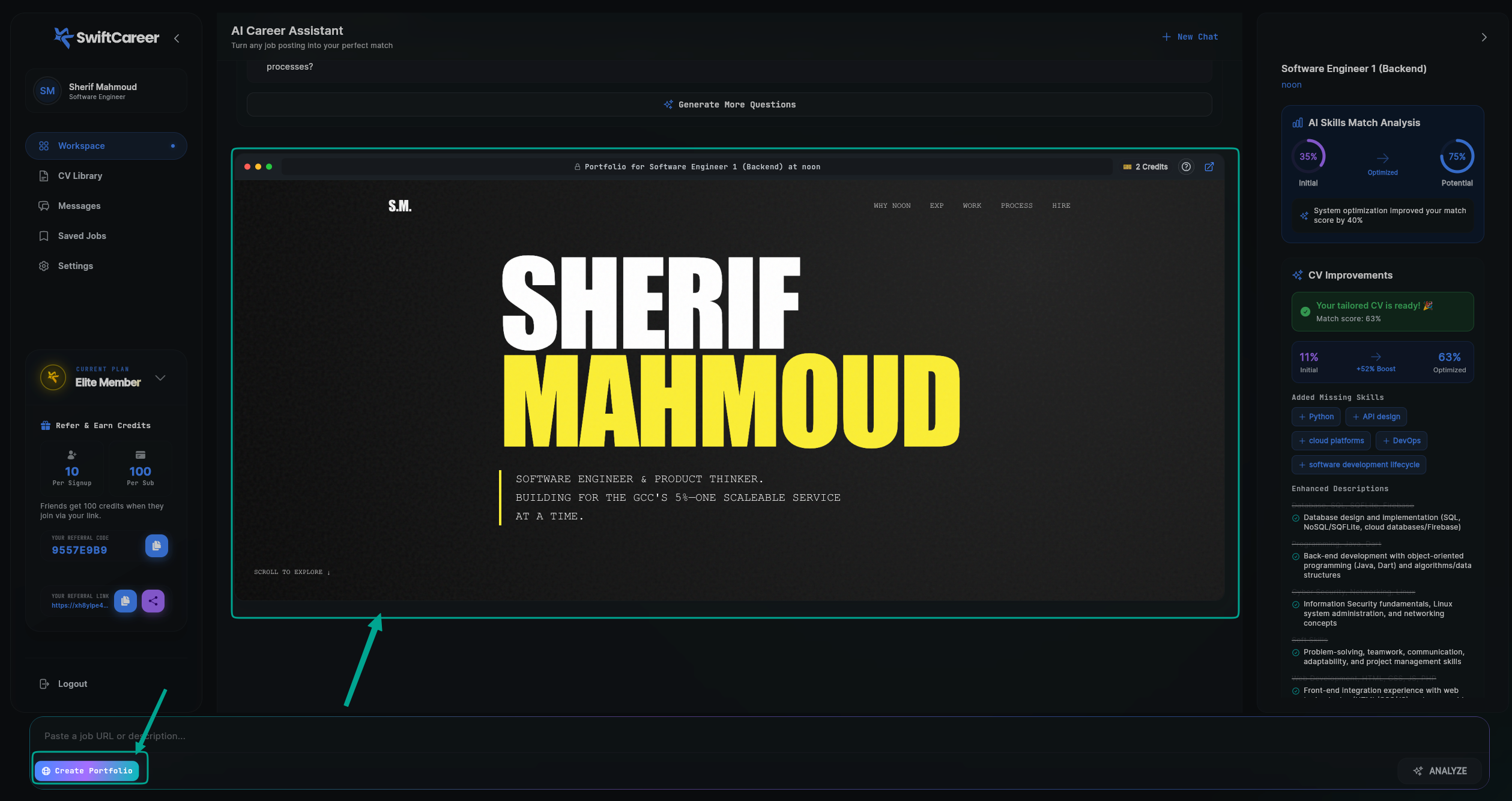
The Portfolio Website Message includes:
- Your portfolio link: A unique URL to your personalized portfolio
- Portfolio preview: A glimpse of what your portfolio looks like
- Share options: Ways to share your portfolio with employers
- Edit options: Ability to customize and update your portfolio
This message gives you a professional online presence that complements your CV and allows potential employers to see your work in action.
Message Components
1. Portfolio Link
Website URL
- Your unique portfolio URL
- Usually something like:
yourname-portfolio.swiftcareer.ioor similar (Custom domains soon) - Clickable link to view your portfolio
Action Buttons
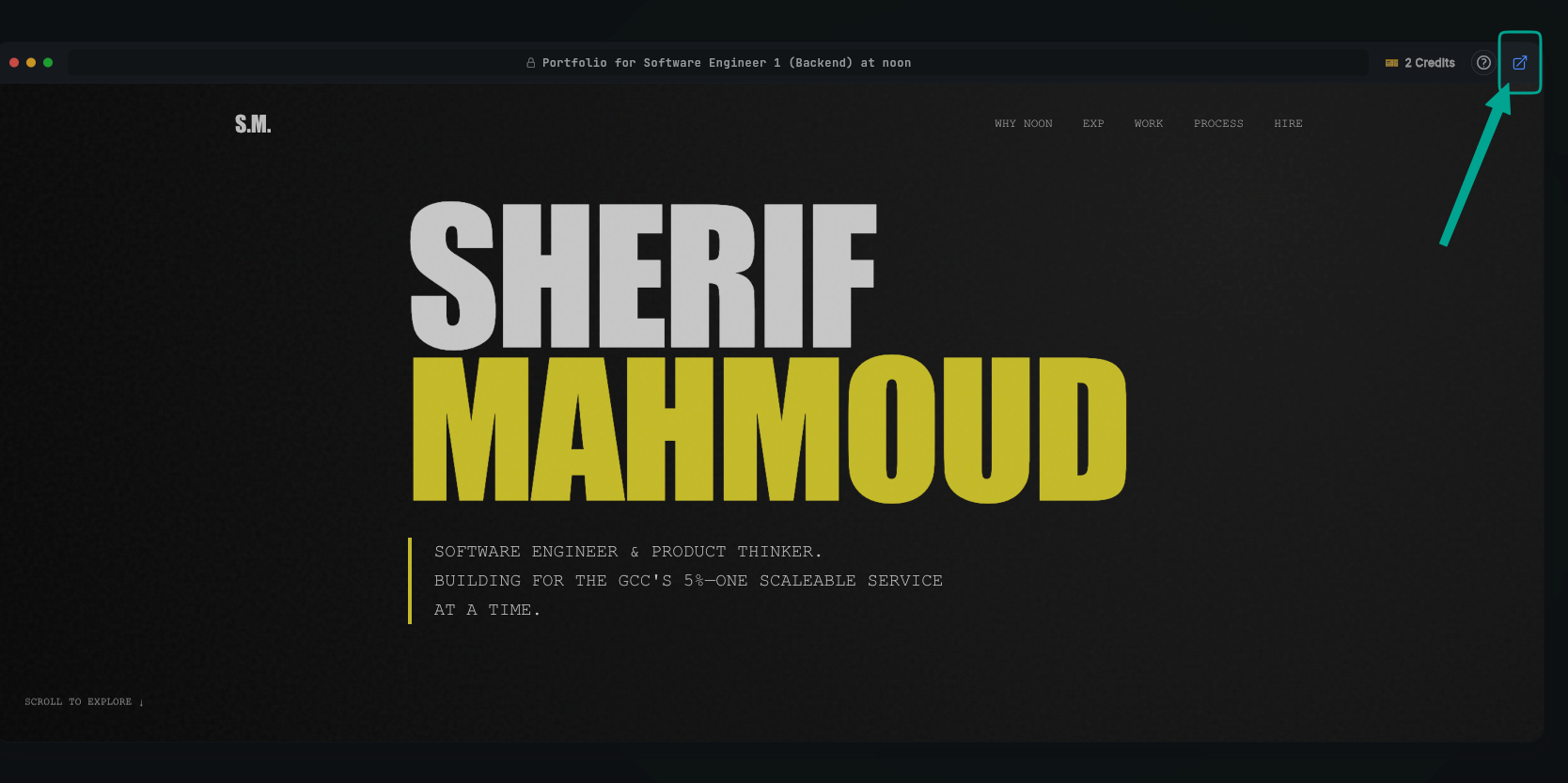
View Portfolio
- Button to open your portfolio in browser
- See it as employers will see it
How to Use It
Step 1: Review Your Portfolio
- Click the link: Open your portfolio in a browser
- View on different devices: Check how it looks on mobile, tablet, and desktop
- Review all sections: Make sure all information is accurate
- Check links: Ensure all links work properly
Step 2: Verify Content Accuracy
- Check information: Ensure all details are correct
- Review projects: Make sure project descriptions are accurate
- Verify skills: Confirm all listed skills are correct
- Check contact info: Ensure contact information is up to date
Step 3: Customize if Needed
- Edit content: Update any information that needs changes
- Add projects: Include any additional relevant projects
- Update skills: Add new skills or remove outdated ones
- Enhance descriptions: Improve project or experience descriptions
Step 4: Share Your Portfolio
- Include in applications: Add portfolio link to your CV and cover letter
- Share on LinkedIn: Add portfolio link to your LinkedIn profile
- Email to contacts: Share with network contacts or recruiters
- Use QR code: Share in person at networking events or interviews
Step 5: Keep It Updated
- Regular updates: Keep portfolio current with new projects and experience
- Refresh content: Update descriptions and achievements periodically
- Add new projects: Include recent work as you complete projects
- Maintain relevance: Remove outdated information
Important Tips
Making Your Portfolio Stand Out
Showcase Best Work:
- Feature your most impressive projects
- Include projects relevant to the job you're applying for
- Show variety in your work
- Highlight projects that demonstrate key skills
Tell a Story:
- Explain the problem each project solved
- Describe your role and contributions
- Show the impact or results
- Include technologies and tools used
Keep It Professional:
- Use professional language
- Ensure good grammar and spelling
- Use high-quality images or screenshots
- Maintain consistent design
Sharing Strategically
In Applications:
- Include portfolio link in your CV
- Mention it in your cover letter
- Add it to application forms if there's a portfolio field
- Make it easy for employers to find
On Professional Networks:
- Add to LinkedIn profile
- Share on code repositories if you're a developer
- Include in email signatures
- Share on relevant professional communities
In Interviews:
- Be ready to walk through your portfolio
- Prepare to discuss specific projects
- Have examples ready to show
- Explain your role in each project
Portfolio Best Practices
Keep It Updated:
- Update regularly with new work
- Remove outdated projects
- Refresh descriptions
- Add new skills as you learn them
Make It Accessible:
- Ensure it loads quickly
- Make it mobile-friendly
- Test all links
- Keep navigation simple
Show Your Personality:
- Let your style shine through
- Show passion for your work
- Include personal interests if relevant
- Make it memorable
Next Steps
After reviewing your Portfolio Website:
- Add to Your CV - Include portfolio link in your CV
- Share on LinkedIn - Add to your professional profiles
- Update Regularly - Keep portfolio current
Getting Help
- Review FAQ
- Contact support via swiftcareer.io